
Defects and tasks: capture, assign, follow up
For inspections in site management, site supervision, trades, and property management: capture defects with photo and plan location, assign them to the responsible contractor, and follow them up to completion.
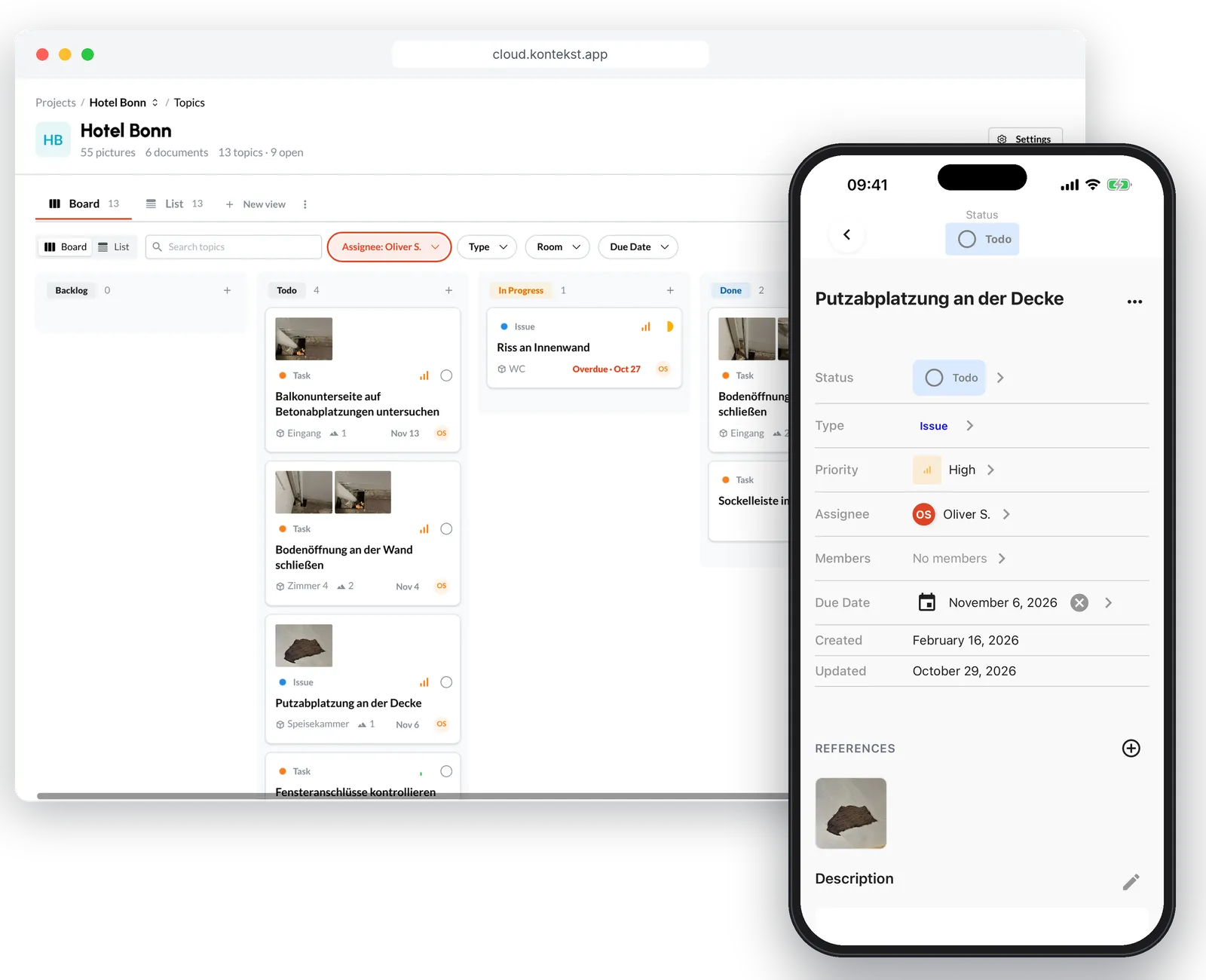
A defect is more than a line in a list
In kontekst, photos, the plan location, and the history stay with the defect. Tasks work the same way, for everything that is not a defect.
One photo, several defects
Photos stay independent and findable through the filters. One photo can belong to several defects without copies.
The location on the plan
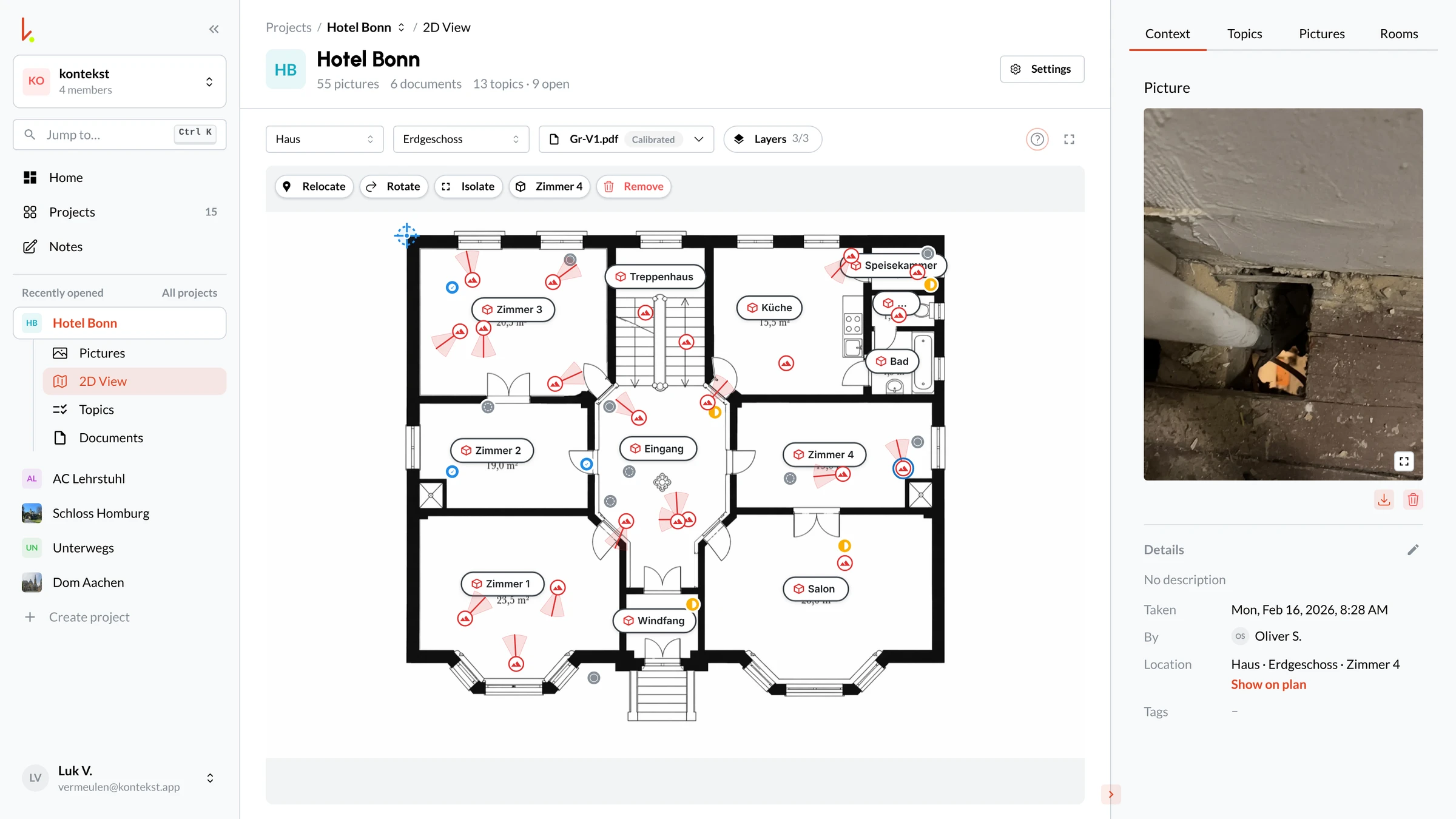
Every defect can be placed on the plan. The floor plan shows where the open items are.
From creation to completion
Status, priority, assignee, and due date on the defect, plus comments and mentions.
1. Photograph and place
During the site walk you take photos in the app, also without signal. Photos and defects get their location on the plan.
Photo at a plan point
Tap the plan in the app and take the photo right at that spot.
Room instead of free text
Date, person, and room are saved with the photo.
Offline on site
The app syncs automatically once a connection is back.
2. Create and assign the defect
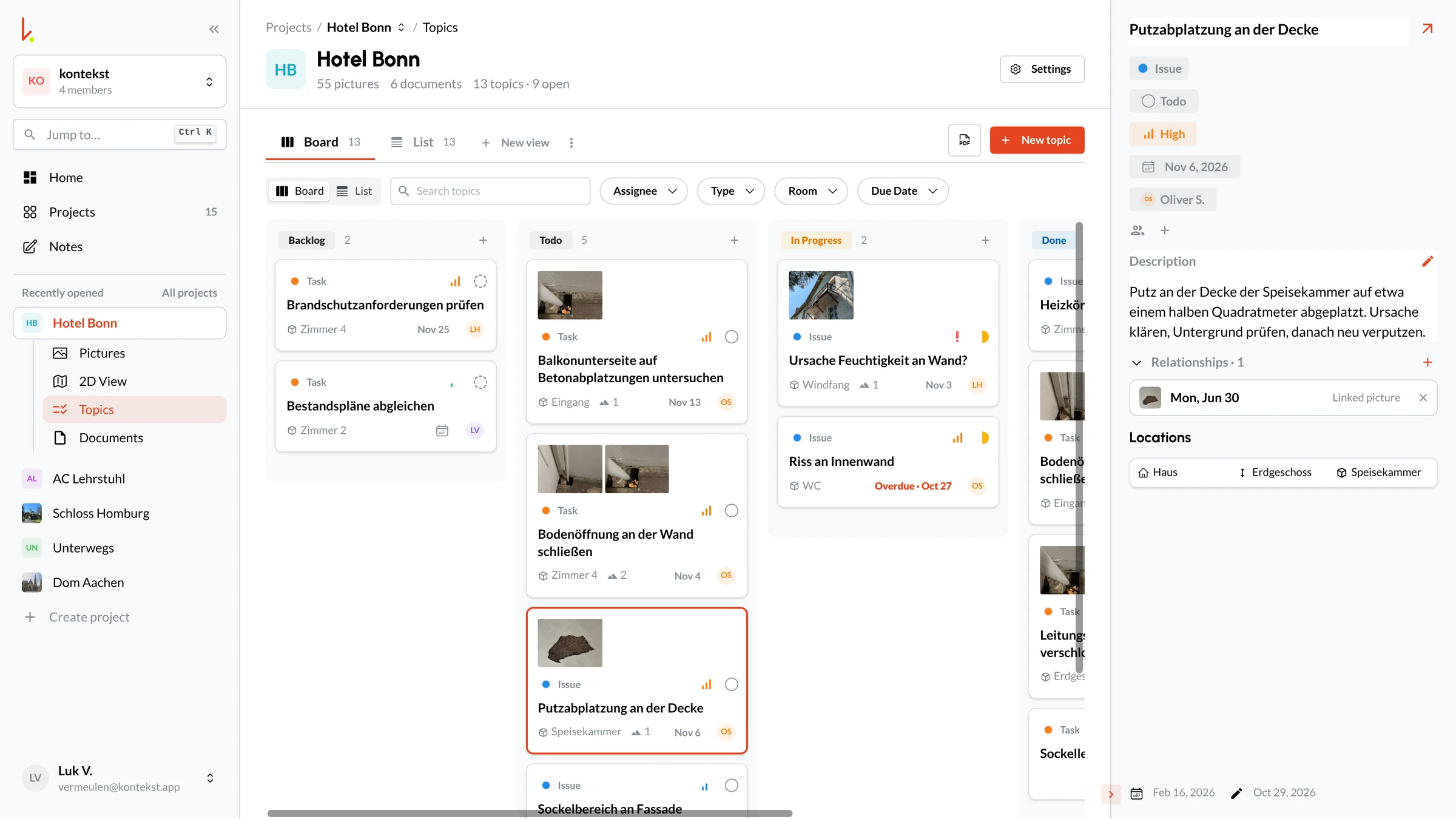
A defect bundles photos, description, location, assignee, and due date. Everything else links to it.
Select the defect before taking photos
Select the defect in the app and new photos are linked to it right away.
Assignee and deadline
Set who works on the defect and by when.
Pass it on to subcontractors
Invite the contractor as a team member or send the defect with its photos by email from the app.
3. Follow up on the board
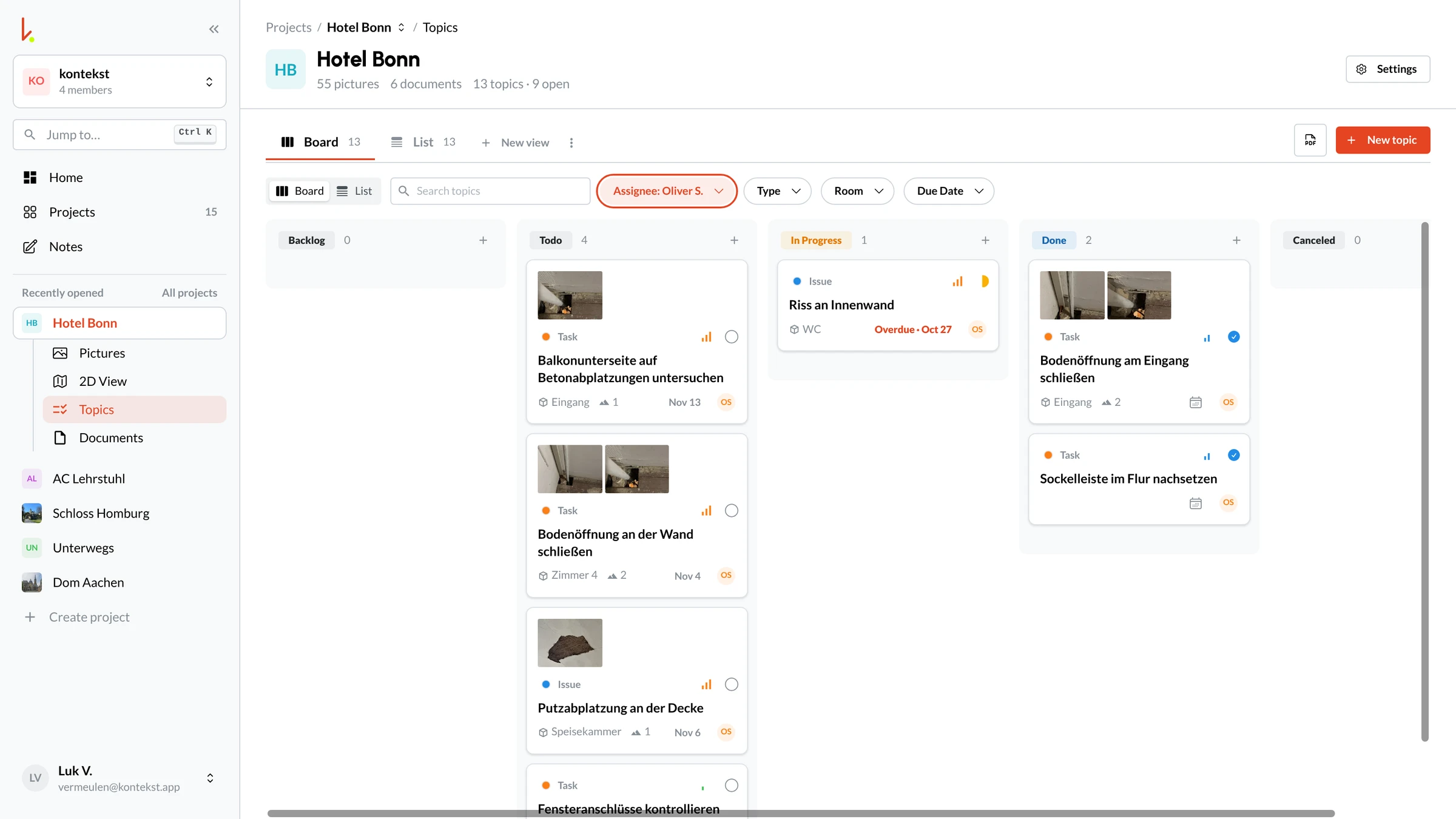
In the browser you see every defect and task by status. Filters show what sits with whom and what is overdue.
Filters on the board
Filter by assignee, type, room, and due date, and change the status by drag and drop.
List in the app
In the app, filter the list by status, priority, assignee, and due date.
Discussion on the defect
Comments and mentions stay with the defect, not in a chat.
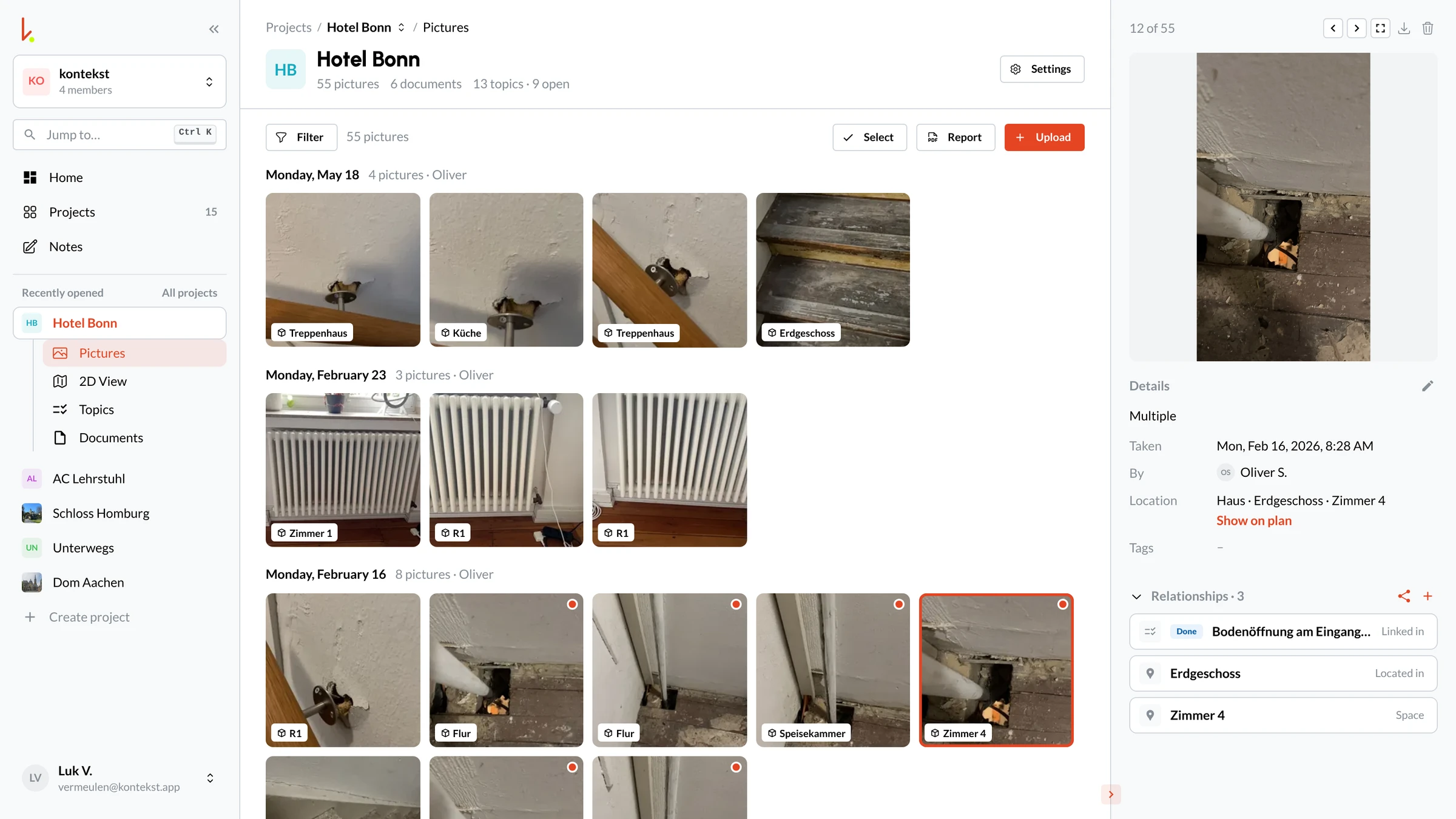
4. Check, close, pass on
After the rework you check on site, link the after photo, and close the defect. There is no separate review status.
After photo on the defect
Before and after photos stay on the same defect. Each photo shows the defect it belongs to.
Defect list as PDF
Start the PDF report of the defect list in the browser. It arrives by email.
Photos as their own report
Collect the photos in a separate PDF photo report.
What kontekst does not do
So you know what to expect before you start a trial:
- No acceptance protocol. You record the acceptance the way your contract requires.
- No guest access and no portal for subcontractors. Invite them as team members or send the defect by email.
- No photos in the defect list PDF. Photos go into a separate PDF photo report.
- No automatic due date reminders.
- No separate trade field. Tags exist only on photos.
- No checklists or forms.
Frequently Asked Questions
How do I create a defect list in an app?
How do I pass defects on to subcontractors?
Are photos included in the defect list PDF?
Can I sort defects by trade?
What is the difference between a defect and a task?
Does the app work offline?
Try the workflow on your next site walk
Create your first defects with photo and plan location, assign them, and then start the defect list as a PDF.