
Your AI assistant
works in kontekst
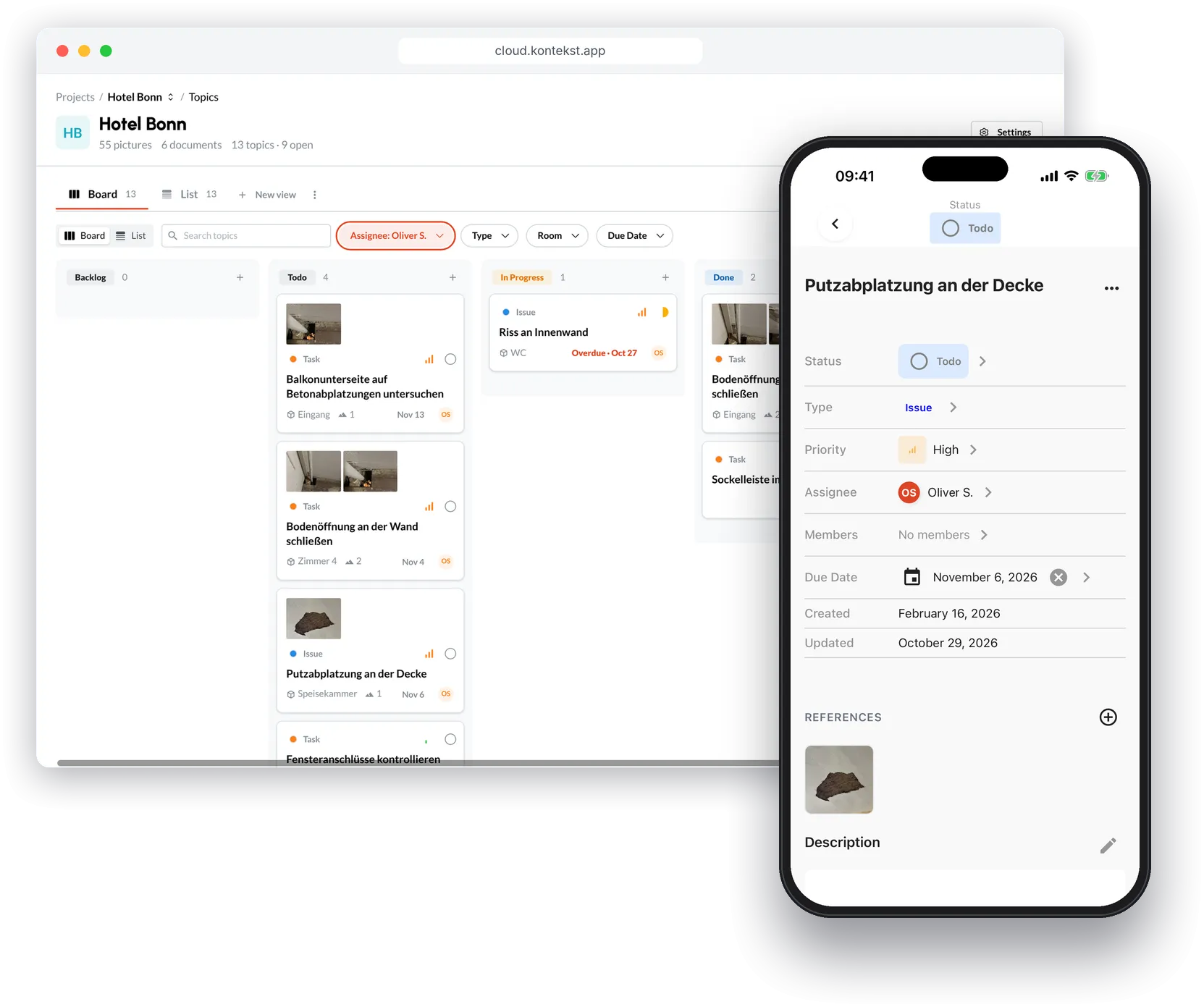
Connect your AI assistant to kontekst. It answers questions about your projects, creates defects and tasks and files photos under the right room. It can only do what you're allowed to do yourself.
Just say what needs doing
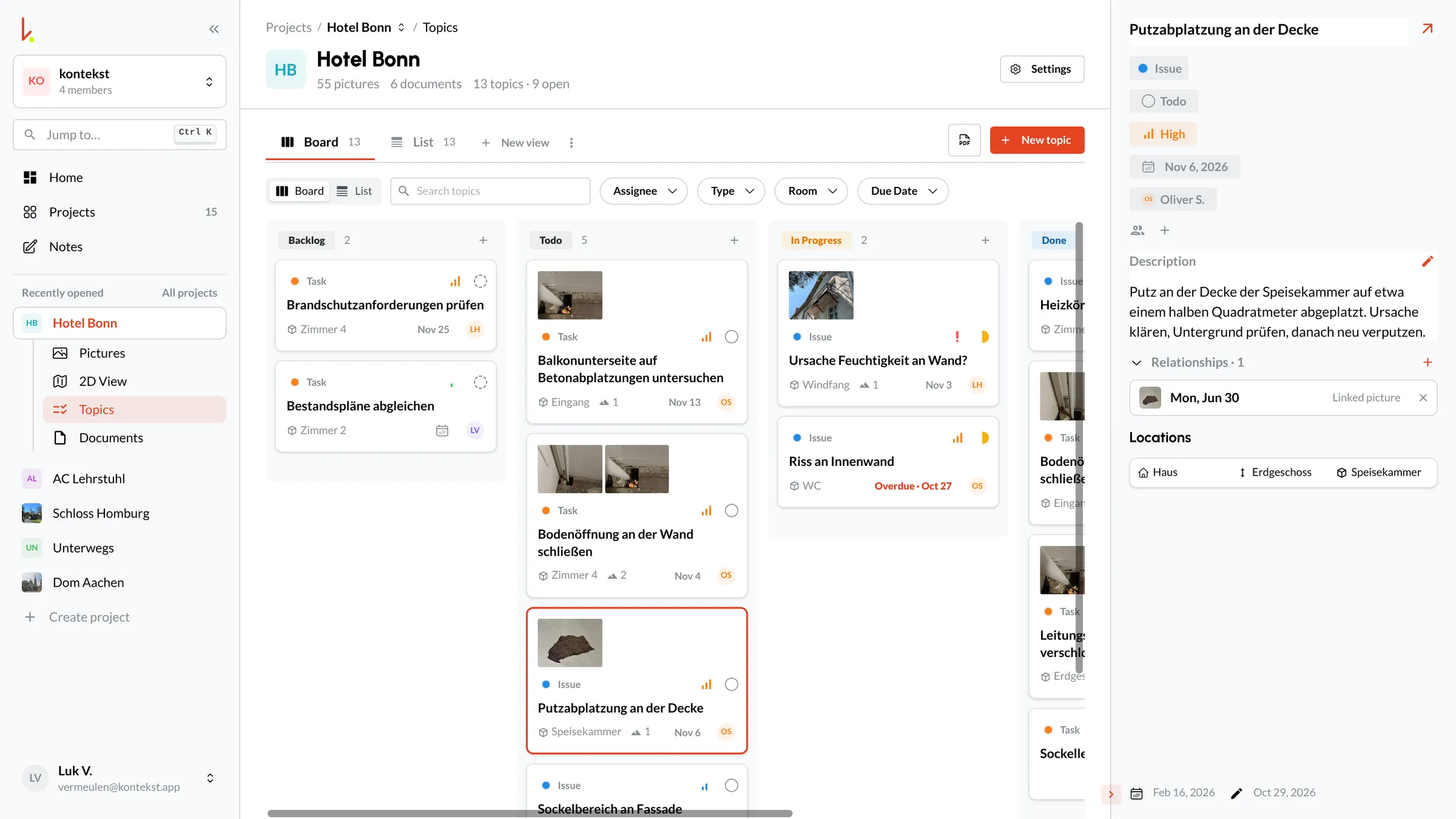
Write to the assistant in plain sentences and tell it what to do. It works directly in your projects. Whatever it creates or changes shows up in kontekst, in the browser and in the app.
Answer questions
Which defects are overdue? What do the new photos show? The assistant looks through your projects, defects, tasks, documents and photos and answers.
Keep defects and tasks up to date
It creates defects and tasks, even many at once from meeting minutes, and fills in status, priority, due date and assignee as it goes.
Upload and assign photos
It uploads photos to the project, assigns them to the right room and writes a short description for each one.
Please create the defects from these minutes in the Hotel Bonn project, each with a due date and assignee.
 3 topics created in kontekst
The three defects are now in the Hotel Bonn backlog.
 Hotel Bonn Topics
Loose tiles in the bathroom
Nov 14 OSReplace silicone joint in the shower
Nov 18 LHCheck fire damper in the hallway
Nov 21 LVCreate defects from meeting minutes
After the site meeting, hand the minutes to the assistant and tell it which project they belong to. It creates the defects with description, due date and assignee.
Clear descriptions
Headings, bullet points and emphasis are kept in the defect.
Keep status and due dates current
"The waterproofing defects are fixed, please update their status." The assistant changes priority and due dates on request too.
Right on the board
New and changed defects appear on the board in the browser and in the list in the app.



Please upload these photos to the Hotel Bonn project, room 4.
3 photos uploaded to kontekst The photos are in room 4, each with a short description.
Hotel Bonn Photos Today 3 photos
 Room 4
Radiator under the window
 Room 4
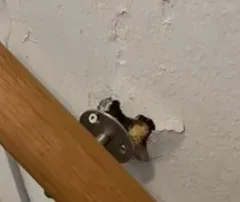
Handrail bracket broken out
 Room 4
Floor opening at the wall
Upload and assign photos
Hand the assistant photos from an email or your computer and tell it where they were taken.
Into the right room
The assistant uploads the photos to the project and assigns them to the room you name.
With a description
It looks at each photo and writes a short description.
A room's photos
"What do the photos from room 4 show?" The assistant finds the photos and describes what's in them.
Which defects at Hotel Bonn are overdue?
Read 13 topics in kontekst Two defects are overdue: the crack in the interior wall since October 27, the damp wall since October 30.
Hotel Bonn Topics Crack in interior wall
Overdue · Oct 27 OSCause of damp wall?
Overdue · Oct 30 LHFind out where things stand
Before the weekly meeting or a call with the client, just ask the assistant instead of clicking through your projects.
Across all projects
Where are there open topics, where are new photos since your last visit, where did something happen recently?
Overdue defects
"Which defects at Hotel Bonn are overdue?" The assistant lists them with due date and status.
Plans and documents
The assistant can also tell you which plans and documents are in the project.
Set up in three steps
Copy the address
Open kontekst in the browser, go to Settings › AI assistants and copy the address.
Add it to your assistant
Add the address to your AI assistant as an MCP server. Some apps call this a connector.
Sign in and confirm
Sign in with your kontekst account and confirm access. If you belong to several companies, pick one first.
What this could look like
Examples of what you can write to the assistant:
After the site meeting
"Please create the defects from these minutes in the Hotel Bonn project, each with a due date and assignee."
Photos from an email
"Please upload these photos to the Hotel Bonn project, room 4."
Before the weekly meeting
"Which defects at Hotel Bonn are overdue?"
After rework
"The waterproofing defects on the 2nd floor are fixed. Please update their status."
You stay in control
The assistant uses your kontekst account. The same rules apply to it as to you.
Only what you're allowed to do
The assistant can only change what you can change in kontekst yourself. Everything it creates carries your name.
One company per connection
The assistant always works in a single company. If you belong to several, you pick one when you connect.
Disconnect any time
Settings › AI assistants lists every connected app, and you can disconnect them there.
kontekst stays in Germany
Your projects remain in a data center in Germany, run by a European provider.
Frequently Asked Questions
What is MCP?
Which AI assistants can I connect?
What can the assistant do in kontekst?
Who sees what the assistant created or changed?
Where is the data processed?
Which plans include it?
How do I disconnect?
Try it with your next meeting minutes
Start the trial, create a project and connect your assistant under Settings › AI assistants. Then just hand it your next set of minutes.